
ConfigEditor#
The ConfigEditor is the central administration interface of SousLeSens. It allows administrators to manage all aspects of the instance configuration, including global settings, users, profiles, data sources, databases, plugins, and system logs.
Settings#
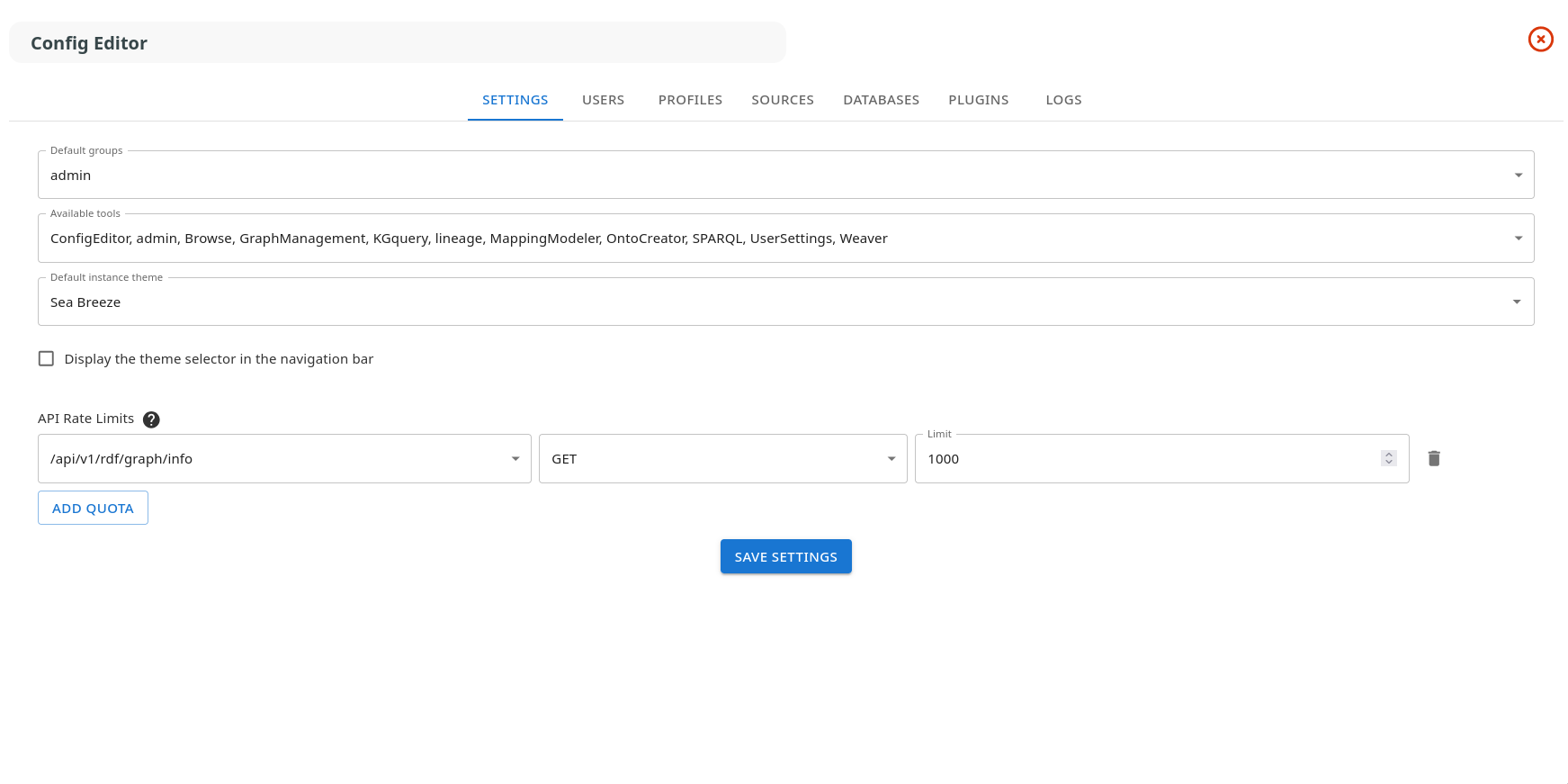
The Settings tab allows you to configure global parameters for the SousLeSens instance.
Default Groups#
Select which profiles are assigned by default to new users. Multiple profiles can be selected.
Available Tools#
Choose which tools are accessible to users. The ConfigEditor tool cannot be disabled. Tools are displayed with their type in italics.
Theme Configuration#
Default Instance Theme: Select the default color theme for the instance
Display Theme Selector: Enable or disable the theme selector in the navigation bar, allowing users to choose their preferred theme
API Rate Limits#
Configure rate limiting for API endpoints to prevent abuse:
Click “Add quota” to create a new rate limit rule
Select an API route from the dropdown
Choose the HTTP method (GET, POST, etc.)
Set the maximum number of requests allowed per minute
Delete individual rules with the trash icon
Users#
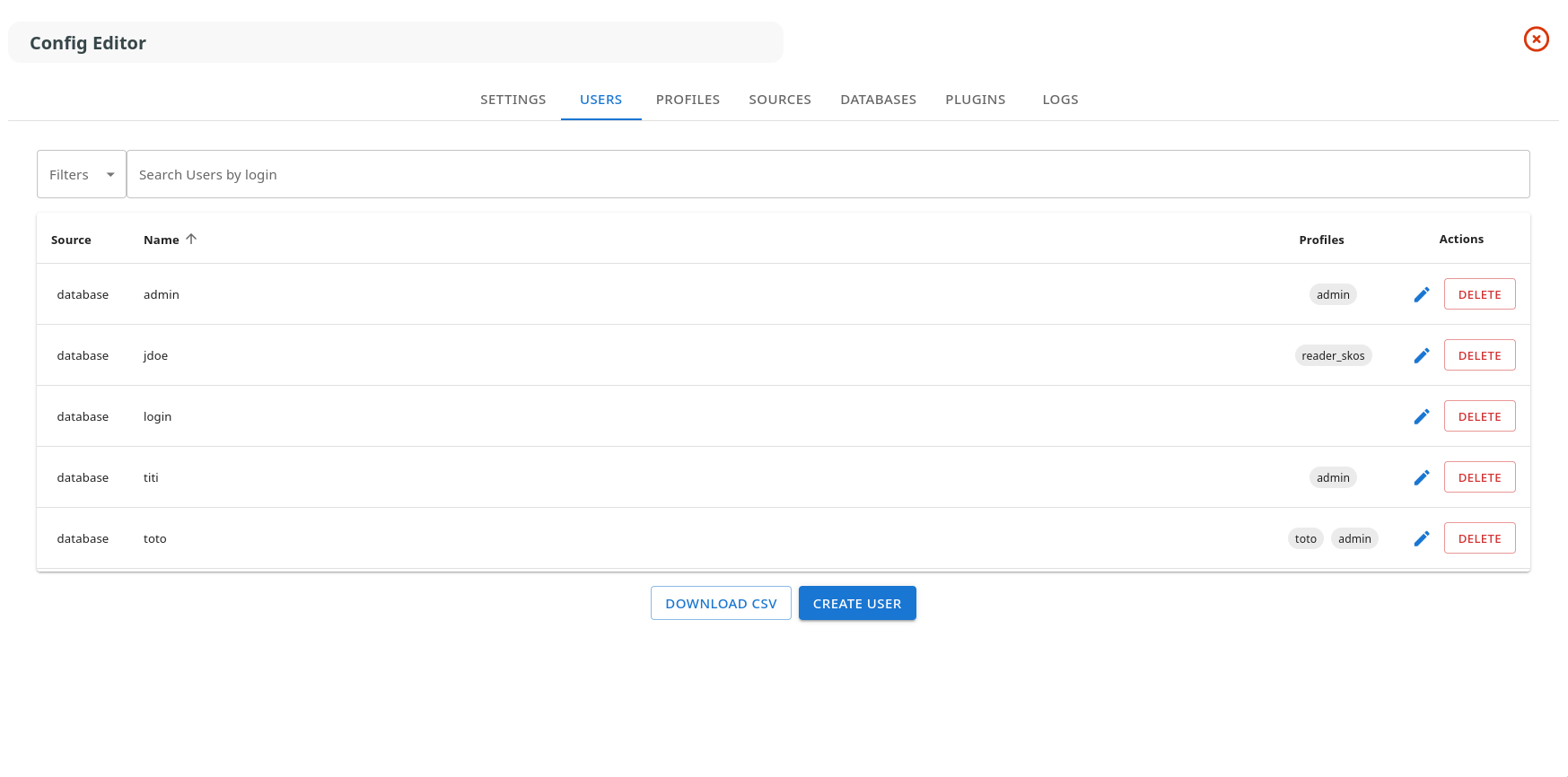
The Users tab displays all registered users and allows user management.
User List#
The table shows:
Source: Authentication source (e.g., “database”)
Name: User login
Profiles: Assigned profiles (clickable chips that navigate to the profile)
Actions: Edit or delete buttons
Creating a User#
Click “Create User” to open the user creation dialog:
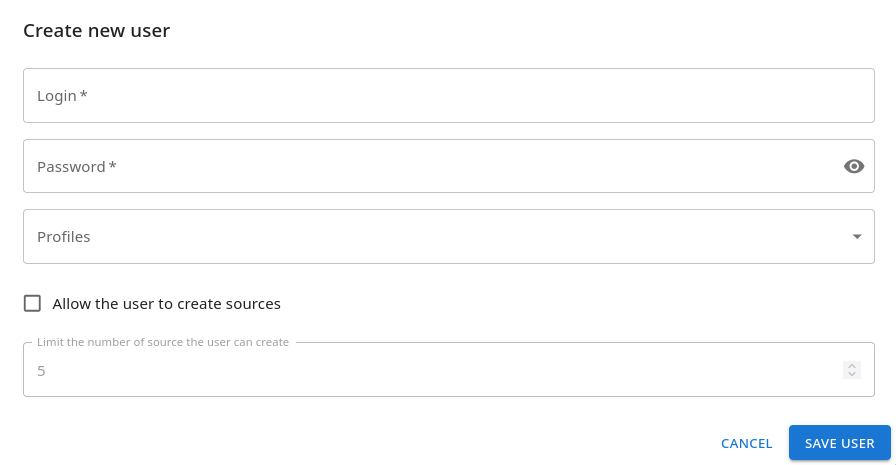
Login: Unique username (required)
Password: User password (required for database authentication)
Profiles: Select one or more profiles to assign
Allow Source Creation: Check to permit the user to create new data sources
Source Creation Limit: Set maximum number of sources the user can create (disabled if source creation is not allowed)
Editing a User#
Click the edit icon to modify user properties. The login cannot be changed for existing users.
Delete User#
Remove a user (confirmation required).
Profiles#
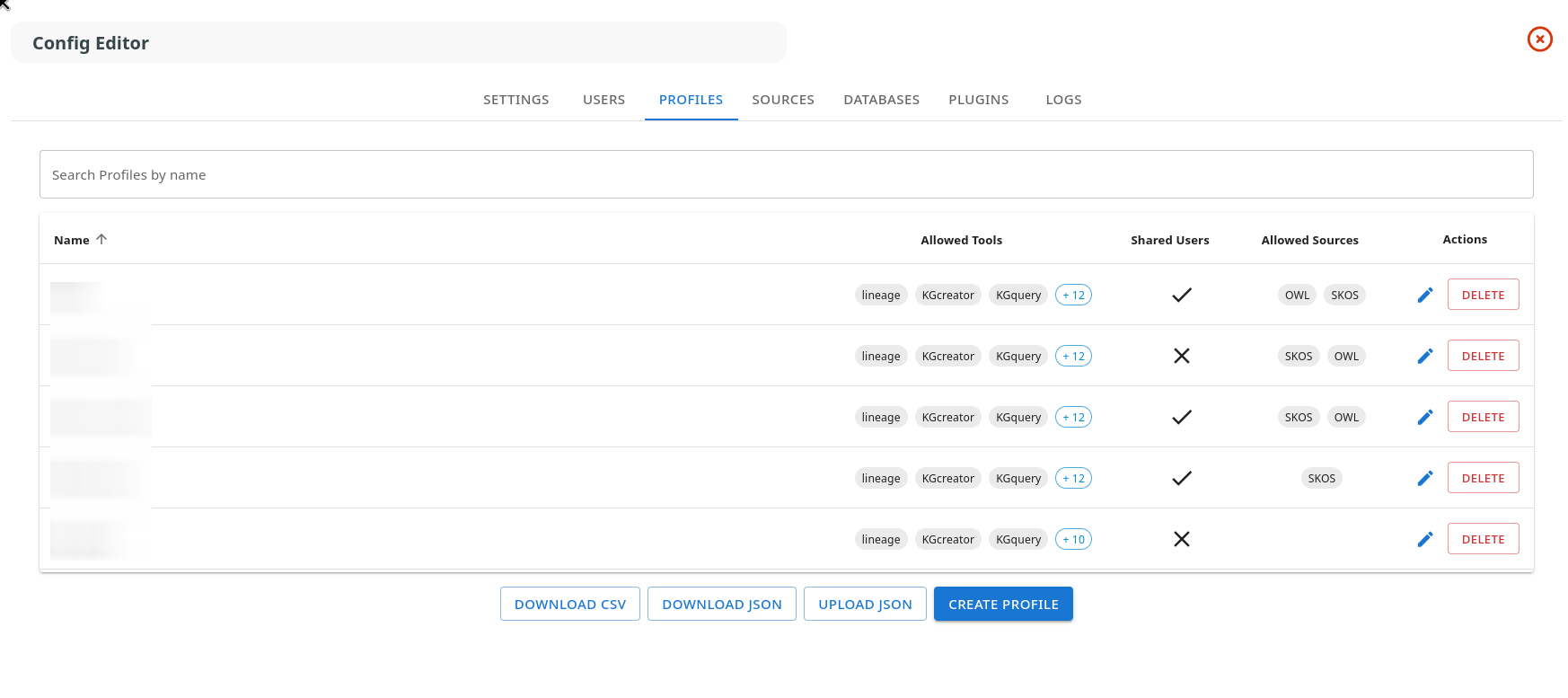
The Profiles tab manages user profiles (roles) that define permissions and access control.
Profile List#
The table displays:
Name: Profile identifier
Allowed Tools: Tools accessible to users with this profile (first 3 shown, others in tooltip)
Shared Users: Indicates if users with this profile are shared across sources
Allowed Sources: Source schemas permitted for this profile
Actions: Edit or delete buttons
Creating/Editing a Profile#
Click “Create Profile” or the edit icon to open the profile editor:
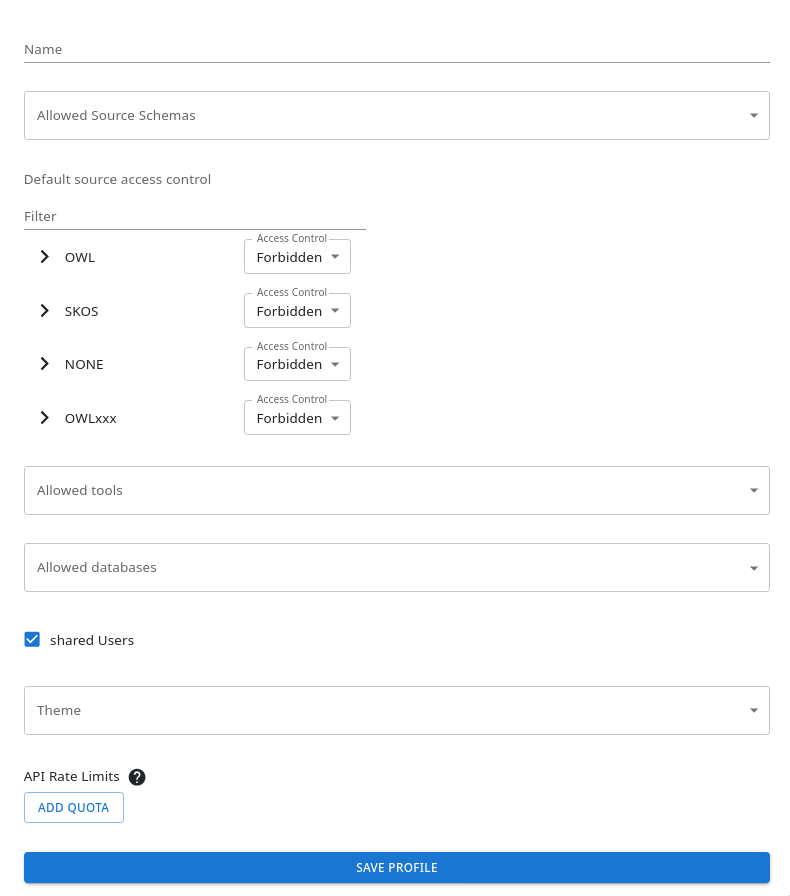
Basic Settings#
Name: Unique profile identifier (cannot be changed after creation)
Allowed Source Schemas: Select which source types (e.g., SKOS, OWL) this profile can access
Default Source Access Control: Configure read/write permissions for sources using a tree view
Filter sources with the search bar
Expand the tree to navigate source hierarchy
Set access level: Forbidden, Read, or Read & Write
Tools and Databases#
Allowed Tools: Select which tools are available to this profile
Allowed Databases: Choose which registered databases this profile can access
Shared Users: Enable to share users across all sources
Advanced Settings#
Theme: Override the default theme for users with this profile
API Rate Limits: Set profile-specific rate limits
Add quota rules per route and method
Whole Profile: When checked, the limit applies to the sum of all routes combined
Sources#
The Sources tab manages data sources (knowledge graphs) available in SousLeSens.
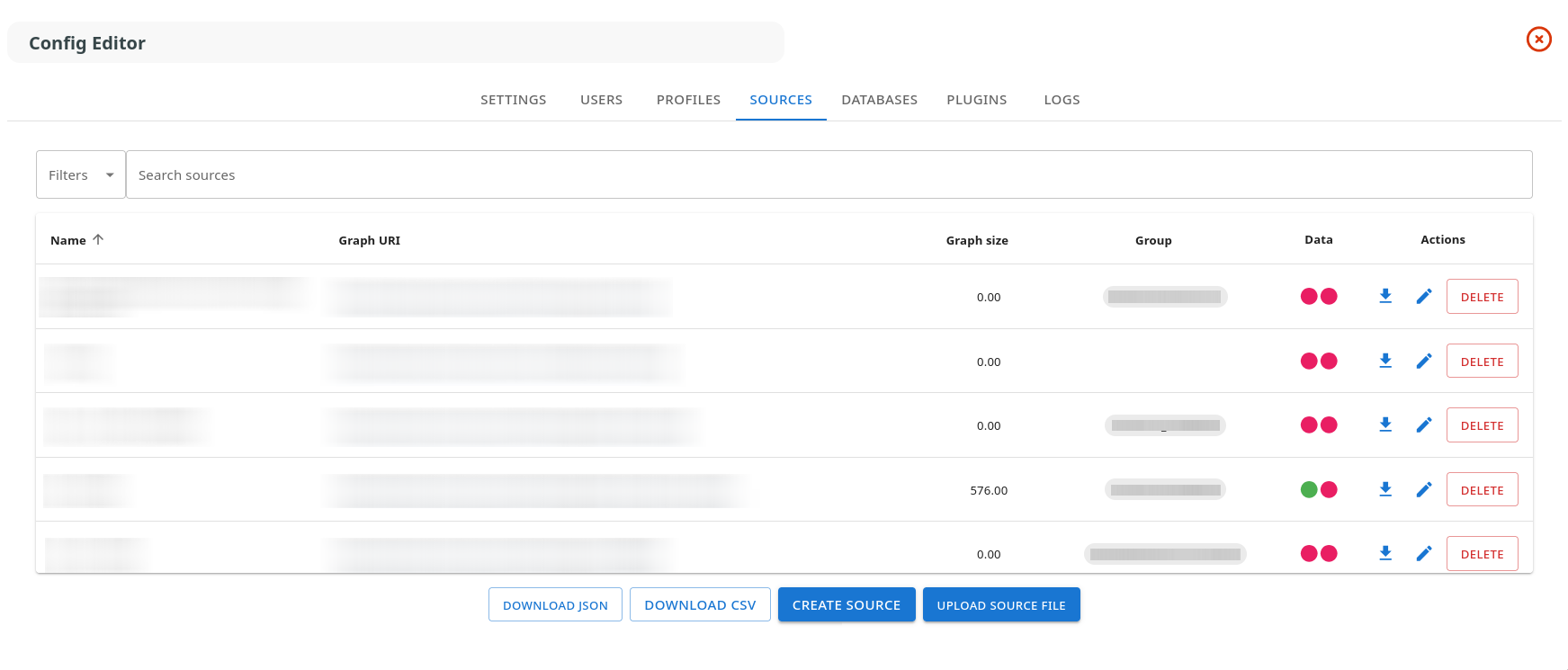
Source List#
The table displays:
Name: Source identifier
Graph URI: Linked URI of the RDF graph (opens in new tab)
Graph Size: Number of triples (human-readable format)
Group: Source group/organization (displayed as chip)
Data: Status indicators
Green circle: Graph or index available
Red circle: Graph or index missing
Actions: Download, edit, delete buttons
Creating a Source#
Click “Create Source” to open the source creation dialog:
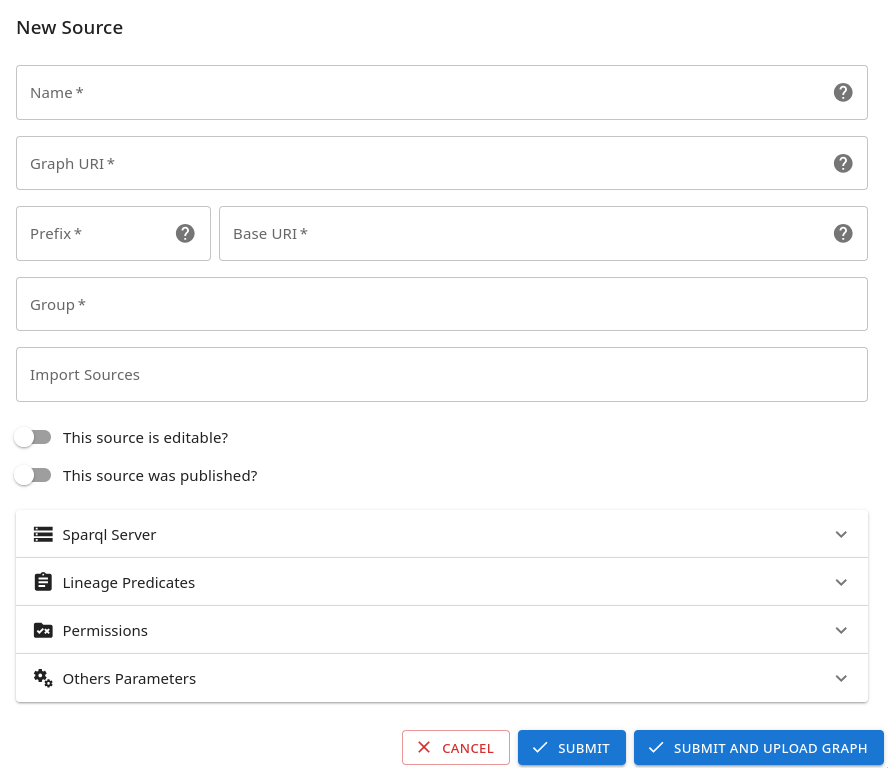
Name: Unique source identifier
Graph URI: SPARQL endpoint or RDF graph URI
Group: Organizational group (e.g., “CFIHOS/Equipment”)
Schema Type: Select ontology type (SKOS, OWL, etc.)
SPARQL Server: Configure SPARQL endpoint URL and authentication
Imports: List of other sources to import
Predicates: Configure taxonomy predicates for hierarchy navigation
Options:
Editable: Allow modifications
Is Draft: Mark as work in progress
Allow Individuals: Enable instance data
Delete Source#
Remove a source (confirmation required).
Databases#
The Databases tab manages SQL database connections used by SousLeSens.
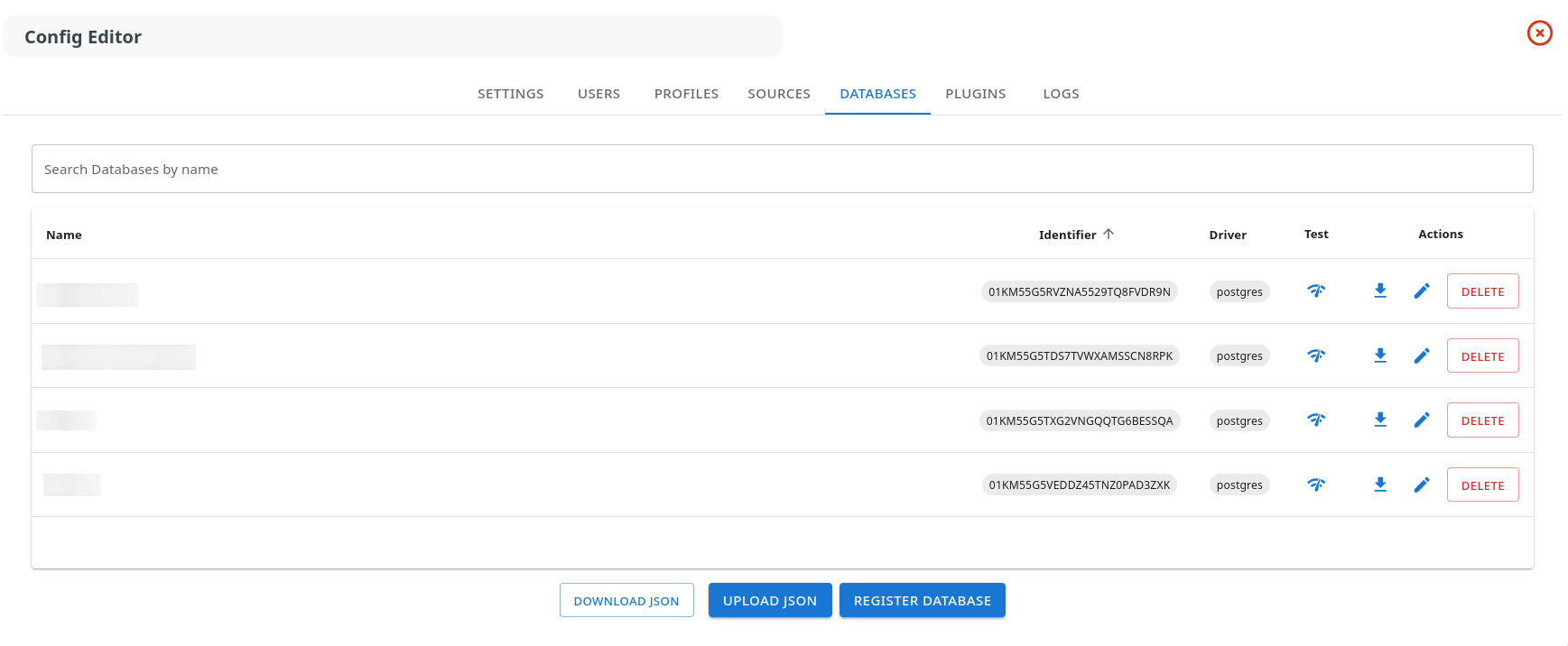
Database List#
The table shows:
Name: Database display name
Identifier: Unique ID (click to copy to clipboard)
Driver: Database type (PostgreSQL, SQLServer)
Test: Connection test button
Actions: Download, edit, delete buttons
Registering a Database#
Click “Register Database” to add a new connection:
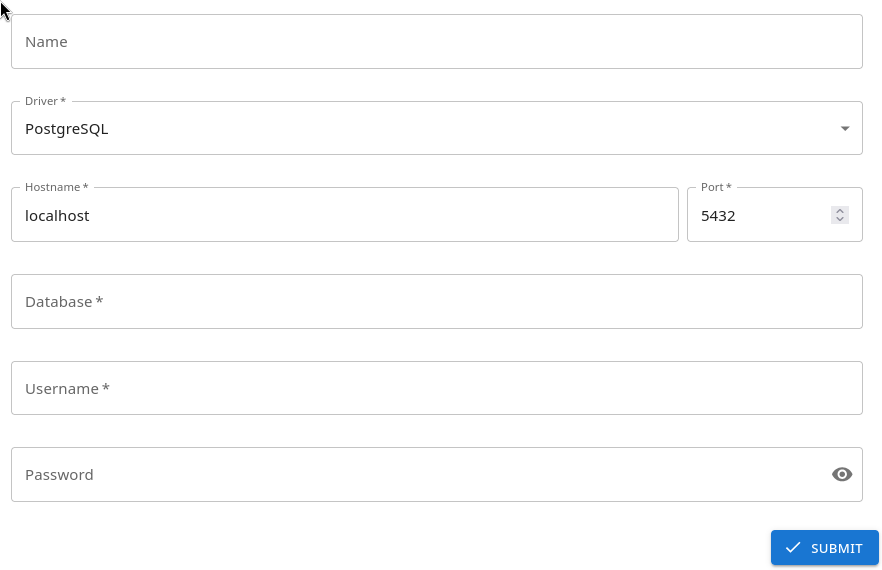
Name: Friendly name for the database
Driver: Select PostgreSQL or SQLServer
Hostname: Database server address
Port: Connection port (e.g., 5432 for PostgreSQL)
Database: Database name
Username: Connection user
Password: Connection password
Plugins#
The Plugins tab manages plugin repositories and configuration.
Repositories Tab#
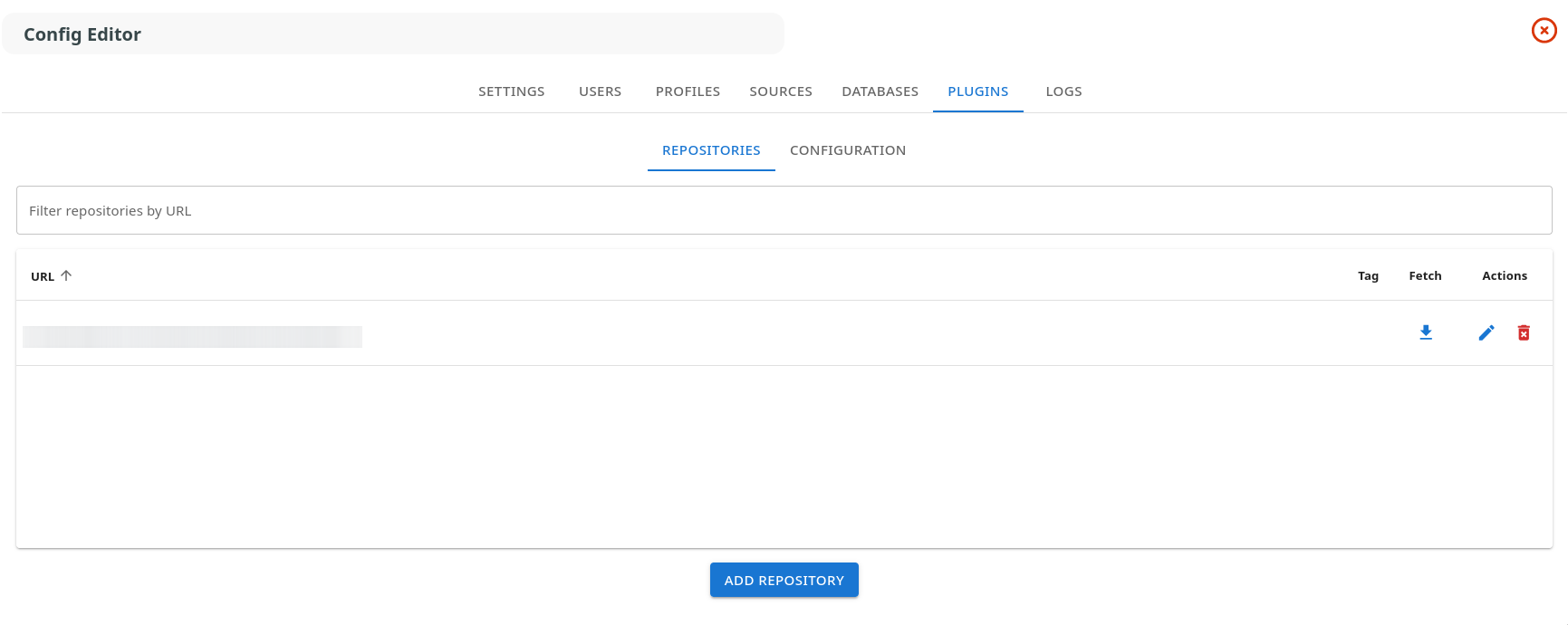
Repository List#
URL: Git repository URL
Tag: Version tag (if specified)
Fetch: Update repository button
Actions: Edit, delete buttons
Plugin Count: Badge showing number of plugins in repository
Managing Repositories#
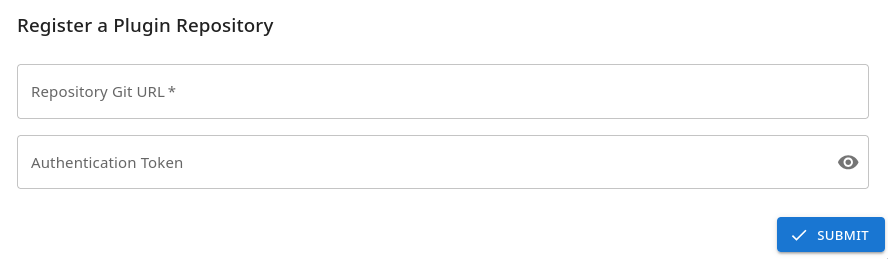
Add Repository:
Enter Git URL
Select version tag (optional)
Choose which plugins to activate (for multi-plugin repositories)
Provide authentication token if required
Fetch Repository: Update plugin list from remote repository
Delete Repository: Remove repository (confirmation required)
Configuration Tab#
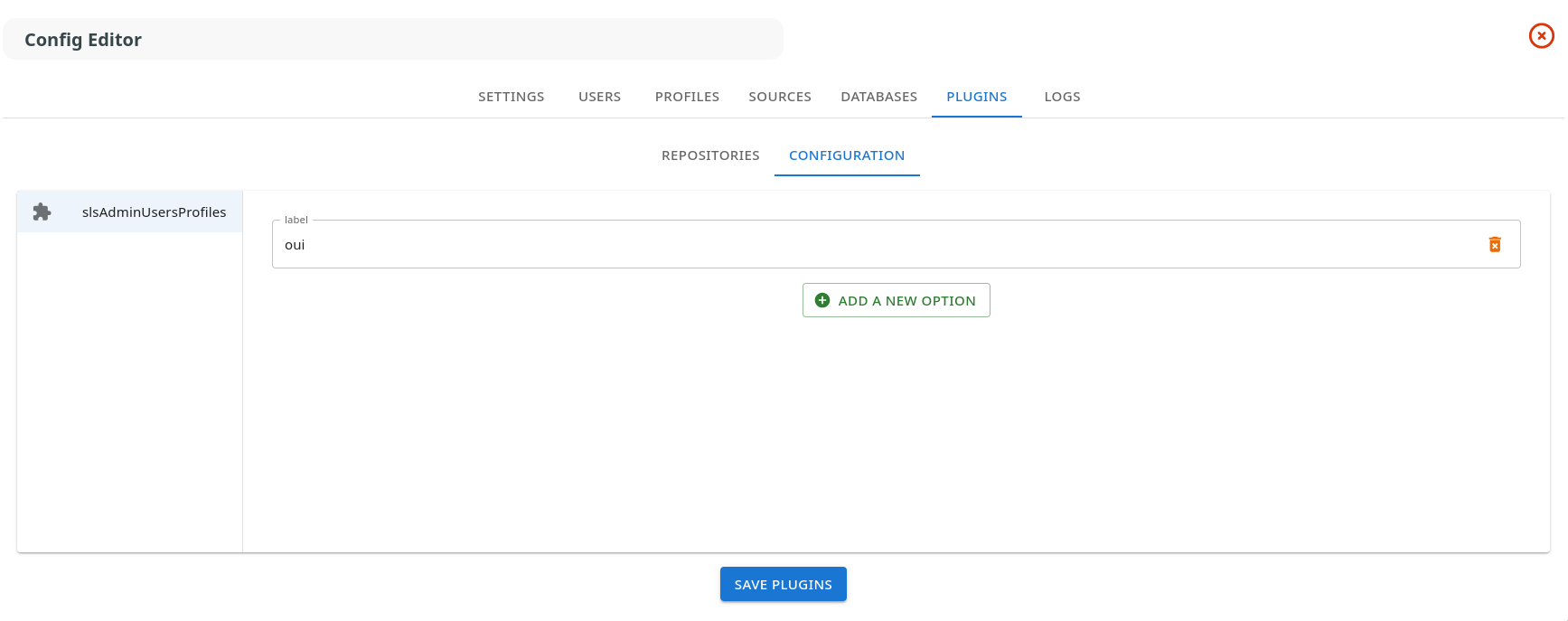
Configure enabled plugins:
Select a plugin from the left panel
Add or modify configuration options:
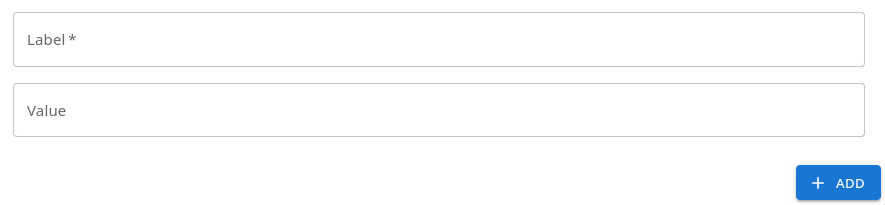
Click “Add a new option”
Enter label (key) and value
Delete options with the trash icon
Click “Save Plugins” to apply changes
Logs#
The Logs tab provides access to system activity logs.
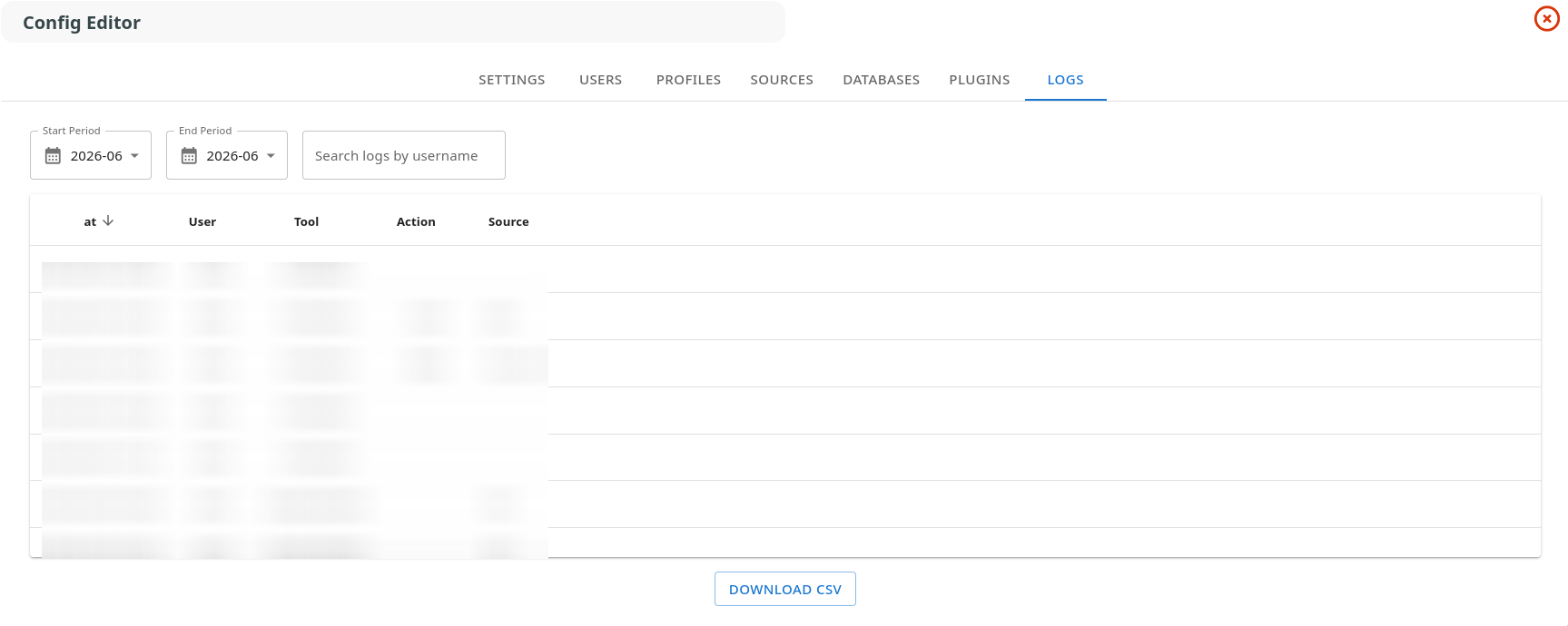
The table displays:
Timestamp: Date and time of the action
User: Username who performed the action
Tool: Tool used (e.g., ConfigEditor, Lineage)
Action: Action type (create, edit, delete, save)
Source: Affected source or resource