
GraphManagement#
GraphManagement is the tool for managing RDF graphs in SousLeSens. It allows you to upload, view, and manage graph data for your configured sources.
Overview#
GraphManagement provides a centralized interface to:
Upload RDF graphs to configured sources
View graph statistics (number of triples, etc.)
Manage graph lifecycle
Uploading a Graph#
Upload Steps#
Navigate to the GraphManagement tool from the main navigation bar
Select your source from the list of available sources
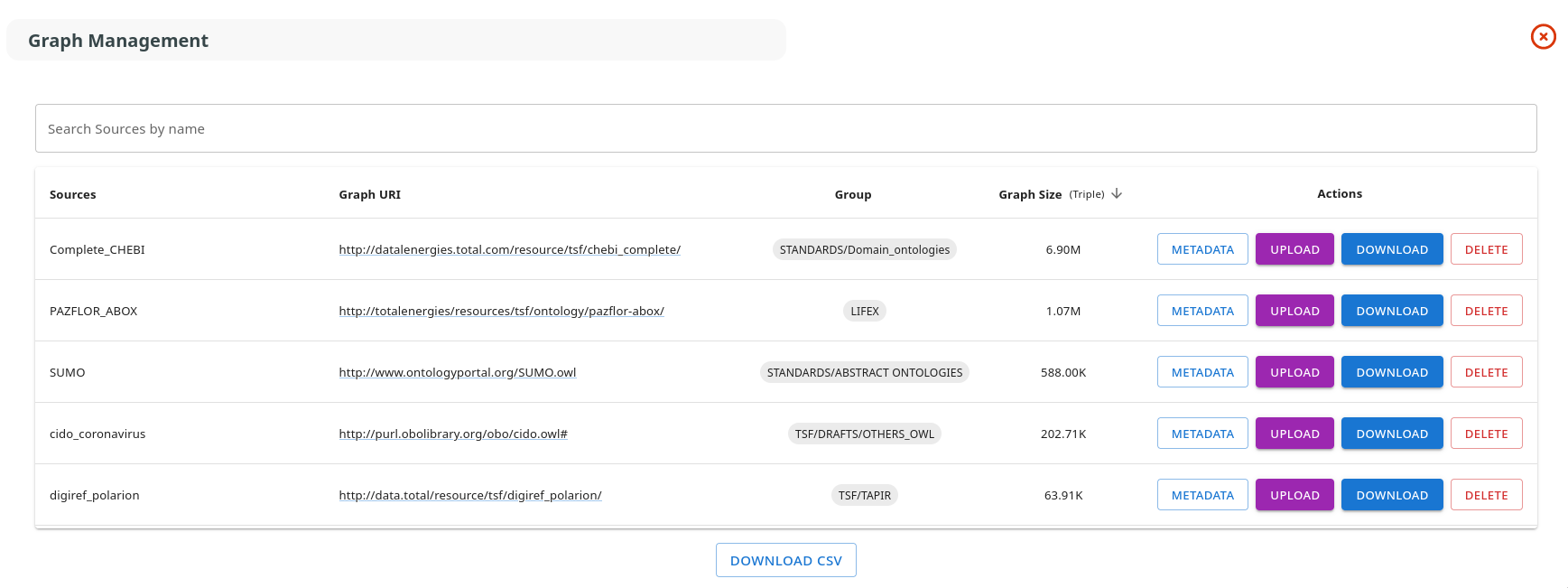
Click “Upload Graph” or drag and drop your RDF file
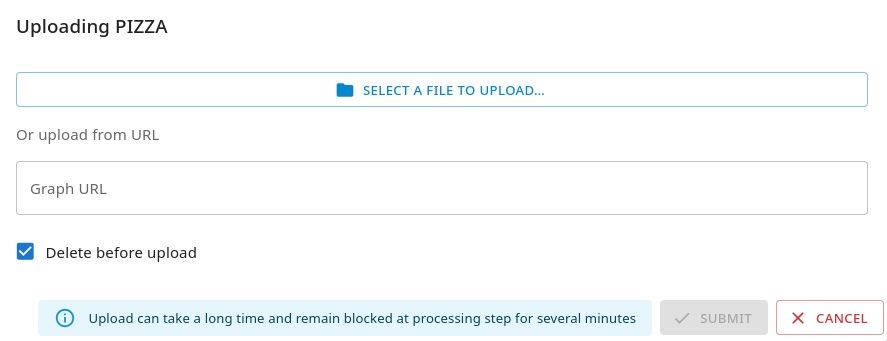
Select your RDF file:
Supported formats: RDF/XML, Turtle, N-Triples, JSON-LD
Click “Open” or drop the file in the upload area
Wait for the upload to complete:
Progress is displayed during upload
Large graphs may take several minutes to process
Verify the upload:
Graph Size displays the number of triples
Status shows “Available” or similar indicator
Supported RDF Formats#
GraphManagement supports the following RDF serialization formats:
Format |
Extension |
MIME Type |
|---|---|---|
RDF/XML |
|
|
Turtle |
|
|
N-Triples |
|
|
JSON-LD |
|
|
Managing Existing Graphs#
Replace a Graph#
To replace an existing graph:
Select the source in GraphManagement
Click “Upload Graph”
Upload the new RDF file
Confirm replacement when prompted
Warning: Replacing a graph will delete all existing triples for that source.
Delete a Graph#
To delete a graph:
Select the source in GraphManagement
Click “Delete Graph”
Confirm deletion
Warning: This action cannot be undone. All graph data will be permanently deleted.
Download a Graph#
To download/export a graph:
Select the source in GraphManagement
Click “Download Graph”
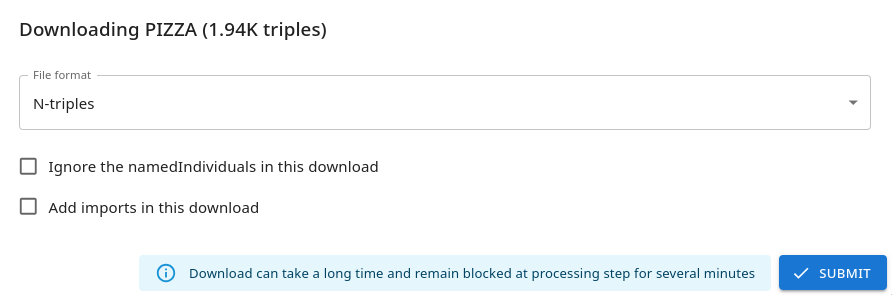
Choose the export format (RDF/XML, Turtle, etc.)
Click “Download” to save the file